

TL;DR — Linktree does not offer a native custom domain. You can point a domain you own at a Linktree page with a registrar-level redirect, but the address bar still lands on linktr.ee. For a branded address that stays yours for the whole visit, you need a platform with native custom domain support. The exact DNS records for GoDaddy, Cloudflare, Namecheap and Porkbun are further down this page.
Reviewed 10 September 2026 by the Linkie team.
Linktree doesn't offer native custom domain support, so a branded setup usually means a redirect workaround instead of replacing the default linktr.ee/username URL. If the goal is a real branded bio link, the cleaner path is a platform that supports native custom domains and subdomains, where Linkie shows the exact DNS records to add and the connection status moves from Pending to Live once they are detected. DNS changes can take up to 48 hours to fully update.
Most advice around a Linktree custom domain skips the uncomfortable part. It treats a redirect as if it were the same thing as a native branded URL. It isn't.
A redirect can be useful as a stopgap. But for creators, agencies, coaches, musicians, and small businesses that care about trust, memorability, and ownership, there's a meaningful difference between forwarding a domain and connecting one to the page itself.
Does Linktree Support Custom Domains in 2026?

People searching for a Linktree custom domain are usually trying to solve a simple branding problem. They want links.brand.com, not linktr.ee/brandname.
The confusion is understandable because the workaround is so widely shared that it sounds native. It's not. Linktree's own help documentation says each page is assigned a unique linktr.ee/username URL and there's no option to replace it with a custom domain, as noted in Linktree's custom domain help article.
What people actually do instead
Most users end up with one of these setups:
Registrar forwarding: The domain registrar forwards a branded domain or subdomain to the Linktree URL.
Third-party redirect tools: A service sits in the middle and sends visitors from the branded domain to Linktree.
Subdomain masking attempts: Some users try to make the redirect feel invisible, but that often adds confusion or technical friction.
That approach works in the narrowest sense. A visitor types one URL and lands somewhere else.
Why this feels off in practice
A redirect-based setup is like putting a polished sign on a rented apartment. The sign looks like the brand, but the actual property still belongs to the platform behind it.
That creates trade-offs:
Another dependency: If the redirect service breaks, changes policy, or loses its certificate setup, the branded path breaks too.
Less direct ownership: The public-facing URL is branded, but the destination still lives on a platform URL that can't be replaced.
More moving parts: Registrar settings, SSL handling, redirect type, and verification all have to line up.
A redirect solves the address problem. It doesn't solve the ownership problem.
That's the key distinction most articles blur. If the goal is “make this look branded for now,” a redirect is fine. If the goal is “build a link-in-bio page on a domain the brand controls,” it's the wrong long-term setup.
For an Instagram creator sharing one link in bio, that difference matters more than people think. For an agency sending paid traffic, a coach collecting leads, or a musician pushing fans to merch and tour dates, it matters immediately.
Why a Custom Domain Beats a linktr.ee URL

A branded bio link does more than look polished. It tells visitors they're still inside the brand's world.
links.brand.com, bio.brand.com, and go.brand.com all do something a generic platform URL can't. They reinforce recognition every single time the link appears in an Instagram bio, TikTok profile, YouTube description, email signature, or podcast show notes.
Why branded URLs convert better qualitatively
There's no honest universal percentage to promise here, and anyone claiming a guaranteed lift is overselling it. A custom domain alone doesn't magically increase clicks.
What it does do is remove friction:
It feels more trustworthy: Visitors recognize the brand before the page loads.
It's easier to remember: Short branded subdomains stick better than a rented platform URL.
It supports long-term consistency: If the business changes tools later, the public URL can stay the same.
It looks more serious: Agencies, startups, consultants, and local businesses benefit from that immediately.
For creators, that's not cosmetic. It affects how followers judge legitimacy. A musician promoting a new release, a coach offering a booking link, or a DTC brand running creator partnerships all benefit when the bio URL feels owned, not borrowed.
Owning the link matters more than people admit
A link-in-bio page is digital real estate. Treating it like a throwaway utility is short-sighted.
A rented URL works until branding starts to matter, campaigns become more structured, or a business wants cleaner analytics and tighter control. At that point, the difference between forwarding traffic and hosting the page on a real branded domain becomes obvious.
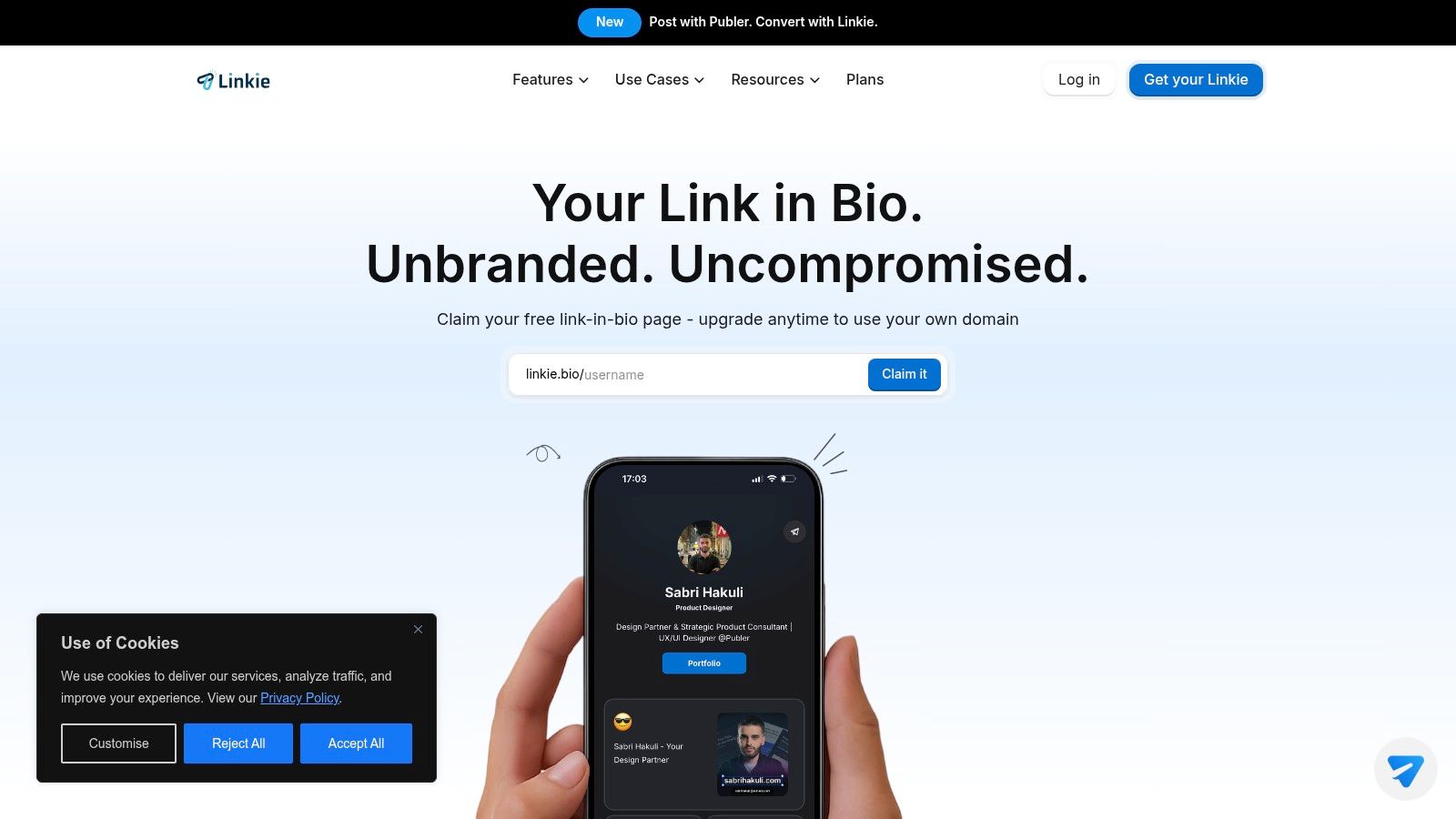
Some platforms support native domain setups cleanly. Linkie, for example, supports native custom domains and subdomains on Plus plans without redirect services. It also includes unbranded pages on the free plan, detailed analytics, email collection, multiple Linkies, a free public API, and two-way Publer integration. For pricing context, the relevant details are listed on Linkie plans.
Practical rule: If the bio link is part of the brand, the URL should look like the brand too.
That's especially true for agencies managing multiple campaigns and for startups trying to keep every customer touchpoint consistent.
How to Connect a Custom Domain, Step by Step
DNS sounds intimidating until it's broken into plain language. For link-in-bio pages, the two records that matter most are usually CNAME and A records.
A CNAME record is usually the cleaner option for a subdomain like links.brand.com. It tells that subdomain to point to another host name. An A record points a root domain like brand.com to a server destination, which is why root-domain setups tend to feel more permanent and a bit less flexible.
CNAME vs A record in plain English
A straightforward way to understand it is:
Record type | Best for | What it does |
|---|---|---|
CNAME | Subdomains like | Points one host name to another host name |
A record | Root domains like | Points the root domain to a server destination |
For most users, a subdomain is the cleanest route. It protects the main website, keeps setup simpler, and avoids messy conflicts.
Good naming patterns include:
links.brand.comfor general social trafficbio.brand.comfor creator or personal brand usego.brand.comfor campaigns and short branded routing
The setup flow that usually works
The good news is that this part is straightforward when the platform gives the exact records to copy.
Add the domain inside the platform dashboard.
Copy the DNS values exactly as shown.
Open the registrar or DNS provider and create the required record.
Wait for verification and SSL provisioning.
Test the final HTTPS version in a private browser window.
Root domain or subdomain
A root domain can work, but it needs more caution. If brand.com already hosts a website, replacing or reworking root DNS can disrupt the main site.
A subdomain is usually safer because it leaves the existing website untouched. That's why many migrations start with links.brand.com instead of trying to point the whole domain.
A native custom-domain setup usually feels cleaner than a redirect stack because the page itself lives on the branded address. Users comparing options can review custom domain support details.
Custom Domain DNS Setup: GoDaddy, Cloudflare, and Namecheap Nameservers
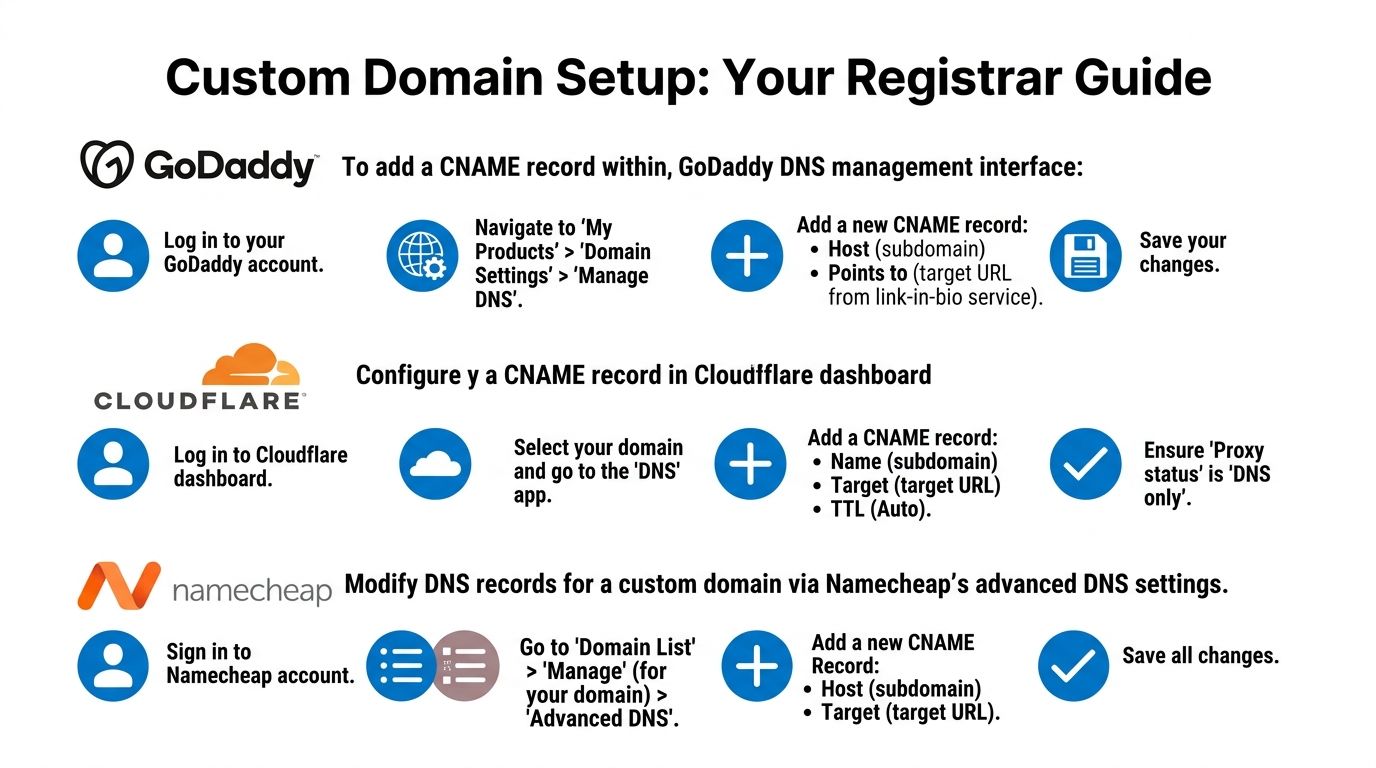
The exact screens differ by provider, but the logic is the same. Copy the values from the platform. Paste them into the right DNS fields. Then wait.
The records Linkie gives you
Linkie shows you the exact records to add. In the playground, click your Linkie URL at the top left, open the Settings icon, then Domain settings. Enter your domain or subdomain and click Save — the status reads Pending while Linkie waits for the records to appear.
What you add depends on which you picked:
A subdomain such as
links.brand.comneeds two records — a CNAME with the Name set to the subdomain (links) and the Content set toapp.linkie.bio, plus the TXT record shown in your Linkie settings. If your provider offers a proxy toggle, set it to DNS only.A root domain such as
brand.comneeds every record Linkie displays. Copy the Type, Name and Content exactly — your provider may label Content as Value, Target or Points to.
Once the records are detected the status changes to Live. If it reads Failed, check that each value was copied exactly and that the domain is not already connected to another Linkie account.
GoDaddy
GoDaddy is common with small businesses and personal brands because domains are often bought there first.
A typical click path looks like this:
Log in: Open the GoDaddy account dashboard.
Find the domain: Go to My Products, then select the domain.
Open DNS: Click Domain Settings or Manage DNS.
Add the record: Choose Add New Record and select the required type.
Paste carefully: Use the host/name and target/points-to values exactly as shown in the platform.
Save changes: Then leave it alone long enough to propagate.
For a subdomain setup, this usually means adding a CNAME. For a root domain setup, the provider may require an A record instead.
Cloudflare
Cloudflare is excellent for DNS management, but it introduces one common gotcha that trips people up during initial setup.
Use this path:
Dashboard: Sign in and select the domain.
DNS app: Open the DNS section.
Add record: Create the record type shown by the platform.
TTL: Leave TTL on Auto unless there's a reason to change it.
Proxy status: Set it to DNS only during setup.
If Cloudflare is proxying the record too early, verification can fail even when the record itself is correct.
That grey-cloud setting matters. Users often leave Cloudflare proxied because they assume more protection is always better. During domain verification, it often just gets in the way.
Namecheap
Namecheap keeps this relatively clean once the domain is on the correct nameservers.
The path is usually:
Sign in: Open the Namecheap dashboard.
Domain List: Select the domain and click Manage.
Advanced DNS: Open the DNS editor.
Create the record: Add the required CNAME or A record.
Save all changes: Then verify later, not immediately.
One practical issue with Namecheap and similar registrars is that users sometimes edit the wrong DNS zone because the domain is managed elsewhere.
Porkbun
Porkbun is often chosen for straightforward domain pricing and built-in convenience. The basic process is similar:
Open the domain management page
Find DNS records
Add the required subdomain or root record
Save the changes
Return later for verification
Porkbun is not one of the providers Linkie documents step by step, though the records are identical wherever you add them. If you would rather use a provider with a written guide, Linkie recommends Cloudflare and also documents GoDaddy, Namecheap, BlueHost, Domain.com, HostGator and Squarespace (formerly Google Domains).
Root domain vs subdomain at the registrar
A quick decision guide helps here:
Choose a subdomain if the main website is already live.
Choose the root domain only if the business wants the bio page at the main address and understands the broader DNS impact.
Choose descriptive names like
links,bio, orgofor better recall.
The cleanest setup is usually the least ambitious one. Start with a subdomain. Publish. Test. Then expand if needed.
Troubleshooting DNS Propagation and Common Custom Domain Errors
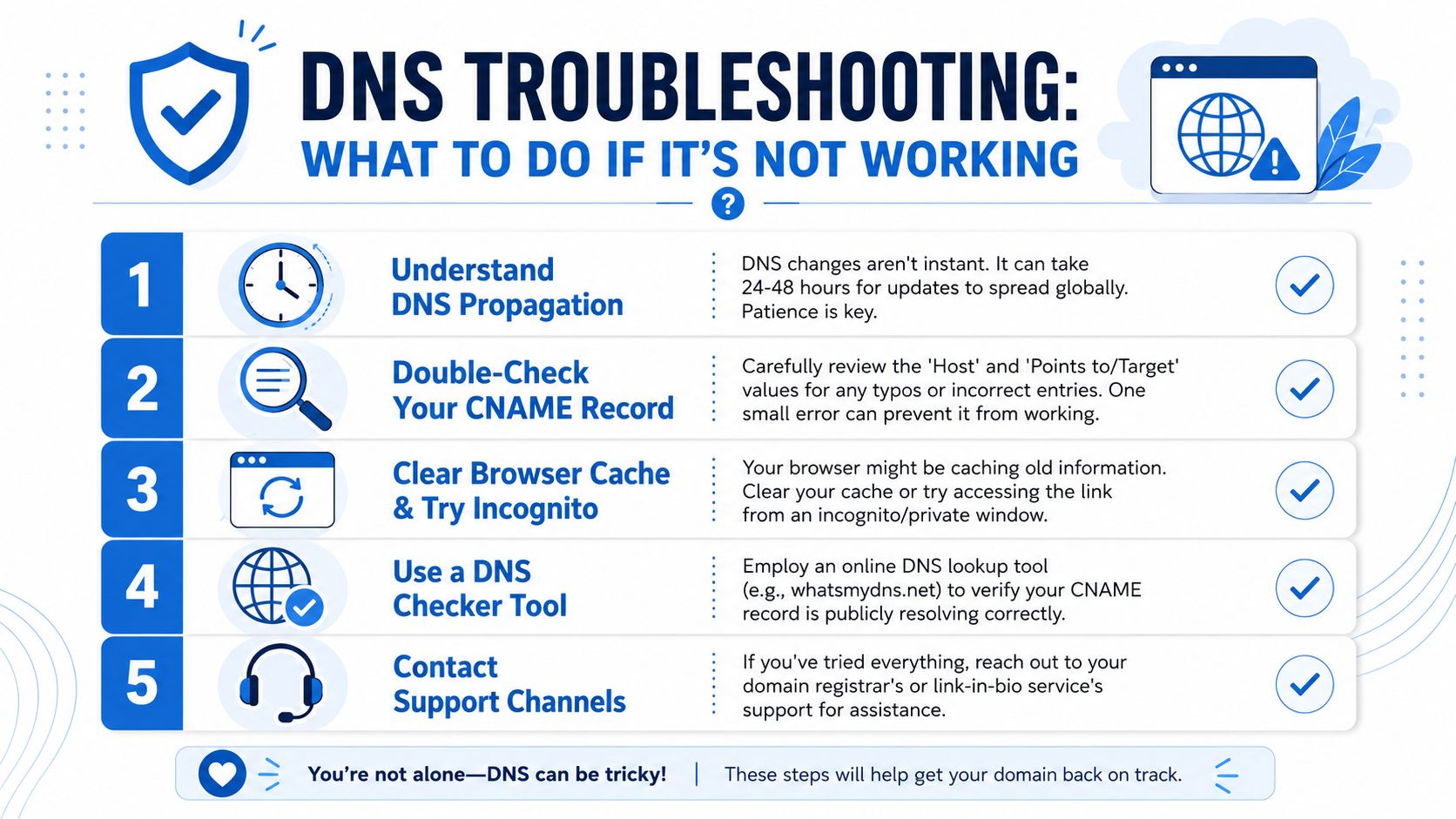
Most “it's broken” moments are just DNS doing what DNS does. The update has been saved, but the rest of the internet hasn't caught up yet.
That lag is normal. When redirecting a custom domain to Linktree through registrar forwarding, users are typically told to wait from a few hours up to 48 hours for the connection to become active, as described in this Linktree forwarding walkthrough on YouTube.
What propagation actually means
DNS propagation is like updating a contact in a global address book. One server gets the new entry first. Others take longer to catch up.
That's why a domain may work on mobile but not desktop, or in one location but not another. It doesn't always mean the record is wrong.
A troubleshooting checklist that catches most problems
Wait before changing anything: Give the new record time to propagate before editing it again.
Check for typos: One wrong character in the host or target field can stop the connection.
Look for conflicts: A subdomain can't have conflicting records trying to control the same name.
Use the right record type: If the platform asks for a CNAME, don't substitute an A record unless the platform explicitly supports it.
Review nameserver ownership: Make sure DNS is being edited in the provider that is serving the domain.
Test with HTTPS: Certificate issues can make a domain seem broken even when DNS is correct.
DNS changes aren't instant. The safest move is usually to verify the record once, then wait before troubleshooting harder.
There's one more wrinkle for redirect-based Linktree setups. HTTPS certificate validation has to work, otherwise the forward won't work securely. Services such as Porkbun or Cloudflare often handle that layer, which is why a redirect can fail even when the domain appears connected, as discussed in this Reddit discussion on secure forwarding to Linktree.
Common mistakes that waste the most time
A few issues show up repeatedly:
Editing the wrong provider: The domain was registered at one company but DNS is hosted somewhere else.
Using the wrong subdomain name:
www,bio, andlinksaren't interchangeable.Adding too many records: Users stack old and new records together and create conflicts.
Rushing verification: They click verify repeatedly instead of waiting.
The fastest fix is usually boring. Check the record. Confirm the DNS host. Wait.
Linktree Custom Domain Alternatives: Migrating Without Losing Your Links
If the goal is a branded address that stays in the address bar, the decision is not which redirect tool to use. It is which platform supports a custom domain natively.
What to check before you move
Native custom domain, not forwarding. Ask whether the branded URL stays visible for the whole visit, or whether the visitor ends up on the platform’s own address. That one answer separates a real custom domain from a redirect.
Subdomain support. Most people are better served by links.brand.com than by pointing a root domain at a bio page. Check that subdomains are supported, not only root domains.
HTTPS handled for you. Certificate provisioning should be automatic. If you have to manage certificates yourself, the setup tends to break quietly and stay broken.
Which plan it sits on. A custom domain is almost always a paid feature. Check the tier before you migrate, not after.
On Linkie, a custom domain or subdomain is part of Plus, at $7.50/month billed yearly for a single page. Linktree has no equivalent at any tier, so this is not a price comparison — it is availability against a workaround.
Keep the old link working while you move
The mistake that costs people traffic is changing the link in their bio before the new page is live and tested. Build the new page first, point the domain at it, confirm HTTPS resolves without warnings, and only then update your profiles. Leave any existing redirect in place until the branded URL is confirmed working everywhere. The full checklist is in the FAQ below.
One detail worth knowing before you start: on Linkie, once a custom domain goes live, your original linkie.bio/username URL redirects to it automatically. Links you have already shared, printed on business cards or baked into QR codes keep working.
Linktree Custom Domain FAQ
How does a user switch from a Linktree redirect without breaking the link
The least risky migration is staged.
First, build the new page on the branded domain. Then test it on desktop and mobile. After that, update Instagram, TikTok, YouTube, email signatures, creator bios, and any campaign assets. Only when the branded URL is live everywhere should the old redirect be removed.
That order matters because Linktree doesn't support a native custom domain, so branded setups usually rely on a third-party service using a 301 Permanent redirect to preserve SEO value.
What else can a user get beyond a custom domain
Here, migration usually becomes worth the effort.
A Linktree user moving to a more flexible setup will usually care about:
No platform branding on the free plan: Useful for creators and small businesses that want a cleaner public page.
Detailed analytics: Better visibility into clicks, traffic sources, and engagement patterns.
Email collection: Practical for newsletters, lead magnets, launches, and waitlists.
Multiple pages under one account: Helpful for agencies, managers, and creators with separate projects.
Public API access: Useful for teams that want to automate updates.
Two-way Publer integration: Helpful for syncing social publishing workflows with the bio page.
People comparing broader alternatives can review other Linktree alternatives.
Can one account manage more than one branded page
Yes, that's often the smarter setup.
An agency might maintain separate pages for each client. A musician might want one page for the main brand and another for tour links. A startup might separate investor updates, product launches, and hiring links.
What should a final migration checklist look like
Build the new page first
Connect the custom domain or subdomain
Verify HTTPS is working
Check every outbound link
Update bios and profile links
Leave the old setup in place briefly if needed
Remove the old redirect only after the new link is confirmed live
A custom domain doesn't guarantee better results by itself. What it does provide is stronger branding, better trust, easier recall, and long-term ownership of the URL. Those are solid reasons to migrate even before design and analytics improvements enter the picture.
A branded bio link should feel like part of the brand, not a workaround layered on top of someone else's URL. For anyone ready to move off redirects and set up a native custom domain, create a free Linkie page and test the structure before pointing the final domain live.